> For the complete documentation index, see [llms.txt](https://docs.cspr.click/llms.txt). Markdown versions of documentation pages are available by appending `.md` to page URLs; this page is available as [Markdown](https://docs.cspr.click/cspr.click-v1.11/cspr.click-sdk/react/customizing-the-top-bar/currency-selector.md).
# Currency selector
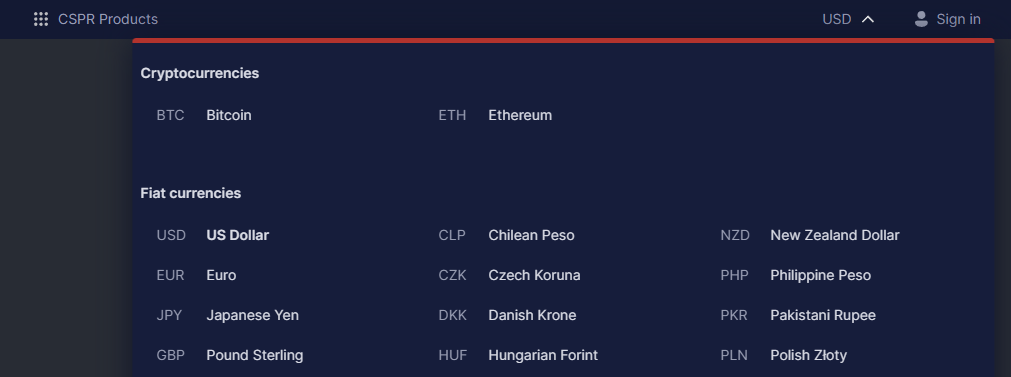
Currency selector widget
If your application supports multiple currencies, you can add to the CSPR.click navigation bar a currency selector.
## Language selector set up
Define an array with the list of currencies your application supports:
```tsx
export const CURRENCIES: Currency[] = [
{
code: 'USD',
title: 'US Dollar',
type_id: CurrencyType.FIAT,
},
{
code: 'EUR',
title: 'Euro',
type_id: CurrencyType.FIAT,
},
//...,
{
code: 'BTC',
title: 'Bitcoin',
type_id: CurrencyType.CRYPTO,
},
{
code: 'ETH',
title: 'Ethereum',
type_id: CurrencyType.CRYPTO,
},
];
```
Note in the image above how currencies are grouped in cryptocurrencies and fiat currencies. In your list of currencies, classify them using the `type_id` property in one of the groups.
Create a state value to store the current currency. For example, with `useState()` hook, but you can use any other method.
```tsx
const [currency, setCurrency] = useState(CURRENCIES[0]);
```
Define a `currencySettings` object with the list of currencies, the selected currency, and a callback method to handle currency selection by the user. Add this object to the `topBarSettings` prop in the `` component:
```typescript
const currencySettings= {
currencies: CURRENCIES,
currentCurrency: currency,
onChangeCurrency: (c: any) => { setCurrency(c); },
}
```
```tsx
```