> For the complete documentation index, see [llms.txt](https://docs.cspr.click/llms.txt). Markdown versions of documentation pages are available by appending `.md` to page URLs; this page is available as [Markdown](https://docs.cspr.click/cspr.click-sdk/integration/signing-transactions.md).
# Signing transactions
Applications that interact with the Casper Network often need to submit transactions. Before a transaction can be processed, the user must review and approve it by signing it with their wallet.
Your frontend application is not always responsible for creating the transaction. Depending on your architecture, the transaction may be built by your frontend, by a backend service, or by a third party before it is sent to the user for approval.
In all cases, CSPR.click helps with the approval step: it asks the active wallet to show the transaction to the user, collects the signature if the user approves, and then either returns the signature or submits the signed transaction.
The CSPR.click SDK provides two ways to obtain this approval:
1. [`send()`](/cspr.click-sdk/reference/methods.md#send).
* Requests the active wallet to prompt the user for approval (signature).
* Automatically submits the signed transaction to a Casper node for processing.
* Optionally accepts a callback function to receive live status updates during execution (e.g., pending, confirmed, rejected).
This is the most common method. In most applications, you can call `send()` and use its result or status updates to tell the user whether the transaction is being processed, confirmed, rejected by the user, or rejected by the network.
2. [`sign()`](/cspr.click-sdk/reference/methods.md#sign).
* Requests the active wallet to prompt the user for approval.
* Returns the signature value to your application, without submitting the transaction.
Use this method for advanced workflows where your application needs the raw signature, such as off-chain processing, server-side validation, or multi-step transaction orchestration.
## Buy Alice a Coffee on testnet
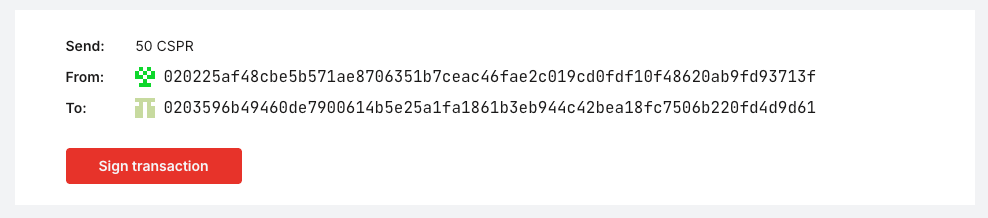
The [React template](https://github.com/make-software/csprclick-examples/tree/master/csprclick-react) includes an example that asks the user to approve a transaction sending testnet CSPR to Alice, an imaginary teammate.
Example in the template project
The example lives in the `` component. These are the key steps:
1. **Build the transaction**
First, construct a transfer transaction. The `casper-js-sdk` package is included in the template to help with this step. Refer to the official Casper SDK documentation for more detailed usage and examples.
2. **Send the transaction**
Next, call `clickRef.send()`. CSPR.click will:
* Prompt the user in the active wallet to review and sign the transaction.
* Forward the signed transaction to a Casper node for processing.
3. **Handle responses**
Your application should be prepared to handle all possible outcomes:
* Success: The transaction was sent and you receive a transaction hash.
* User rejection: The user declined to sign the transaction.
* Network rejection: The Casper node rejected the transaction.
You can handle the final response with `.then()` and `.catch()`, and you can also use live status updates while the transaction is being processed.
4. **(Optional) Track transaction status**
The `.send()` method accepts an optional callback function as its second argument. This callback receives status updates while the transaction is being executed, so your UI can:
* Show progress indicators in your UI (e.g., “Transaction pending…”)
* Update users when the transaction is confirmed or fails
* Provide richer feedback beyond just the final outcome
```tsx
function BuyMeACoffee() {
const { clickRef } = useClickRef();
const activeAccount = clickRef?.getActiveAccount();
const [transactionHash, setTransactionHash] = useState('');
const [waitingResponse, setWaitingResponse] = useState(false);
const signAndSend = (transactionObj: object, sender: string) => {
const onStatusUpdate = (status: string, data: any) => {
console.log('STATUS UPDATE', status, data);
if(status === TransactionStatus.SENT)
setWaitingResponse(true);
};
clickRef
?.send(transactionObj, sender, onStatusUpdate)
.then((res: SendResult | undefined) => {
setWaitingResponse(false);
if (res?.transactionHash) {
setTransactionHash(res.transactionHash);
alert('Transaction sent successfully: ' + res.transactionHash +
'\n Status: ' +
res.status +
'\n Timestamp: ' +
res.csprCloudTransaction.timestamp);
} else if (res?.cancelled) {
alert('Sign cancelled');
} else {
alert('Error in send(): ' + res?.error + '\n' + res?.errorData);
}
})
.catch((err: any) => {
alert('Error: ' + err);
throw err;
});
};
const handleSignTransaction = (evt: any) => {
evt.preventDefault();
const senderPk = activeAccount?.public_key?.toLowerCase() || '';
const transaction = new NativeTransferBuilder()
.from(PublicKey.fromHex(senderPk))
.target(PublicKey.fromHex(recipientPk))
.amount('6' + '000000000')
.id(Date.now())
.chainName(clickRef.chainName!)
.payment(100_000_000)
.build();
signAndSend(transaction.toJSON() as object, senderPk);
};
return (
...
...
)
}
```