> For the complete documentation index, see [llms.txt](https://docs.cspr.click/llms.txt). Markdown versions of documentation pages are available by appending `.md` to page URLs; this page is available as [Markdown](https://docs.cspr.click/cspr.click-sdk/integration/legacy-csprclick-ui/customizing-the-top-bar/language-selector.md).
# Language selector
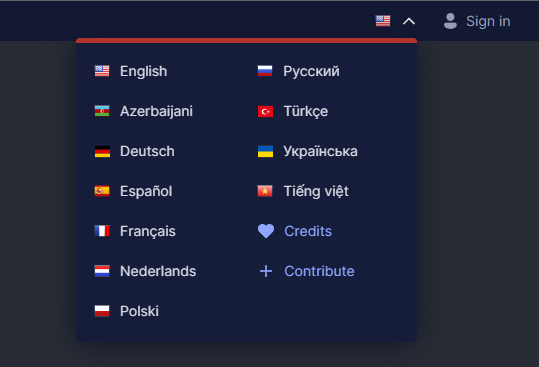
Language selector widget
If your application supports multiple languages, you can add to the CSPR.click navigation bar a language selector.
## Language selector set up
Define an array with the list of languages your application supports:
```tsx
export const LANGUAGES: Lang[] = [
Lang.EN,
Lang.AZ,
Lang.DE,
Lang.ES,
//...,
];
```
Create a state value to store the current language. For example, with `useState()` hook, but you can use any other method.
```tsx
const [language, setLanguage] = useState(Lang.EN);
```
Define a `languageSettings` object with the list of languages, the current language, and a callback method to handle language selection by the user. Add this object to the `topBarSettings` prop in the `` component:
```typescript
const languageSettings = {
languages: LANGUAGES,
creditsUrl: "/credits",
contributeUrl: "/contribute",
currentLanguage: language,
onChangeLanguage: (l: Lang) => { setLanguage(l); }
}
```
```tsx
```
If you want to show a credits page to shout out your contributors, specify a URL in the `credits` field.
And if you want to ask your visitors to help you maintain the translations, specify a URL in the `contribute` field.
Note that both, `credits` and `contribute` links are optional. If you don't specify one or both, such options won't show in the language selector widget.